Peer details & locking
Click a peer's name block in the matrix to slide in its detail panel.
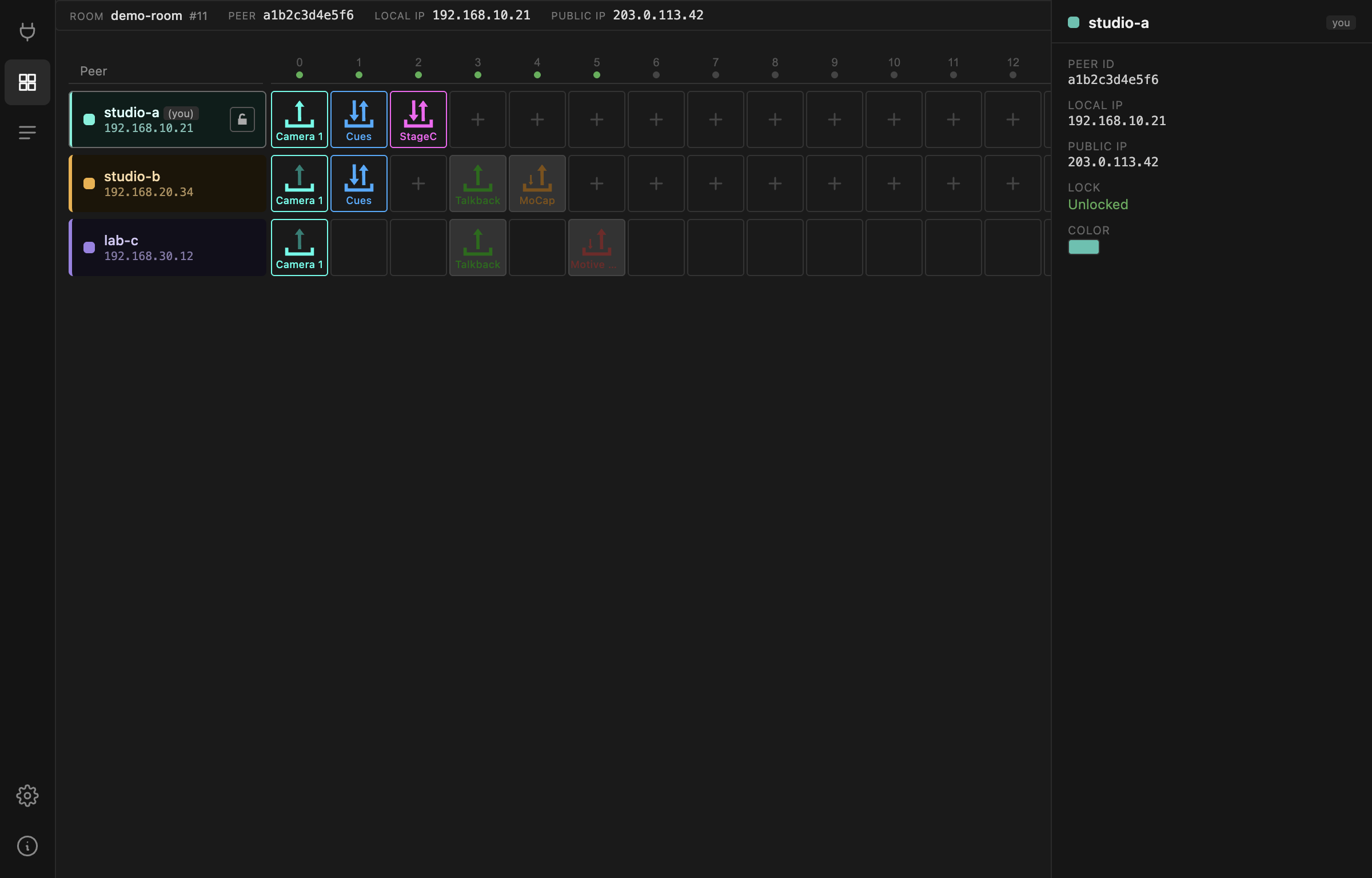
| Field | |
|---|---|
| PEER ID | identifier for this session. Regenerated on every launch, so it is not a stable way to refer to a machine — the peer name is. |
| LOCAL IP | the peer's address on its own LAN. |
| PUBLIC IP | how the router sees it. |
| LOCK | whether this peer accepts remote changes. |
| COLOR | the peer's colour in the matrix. |
Below those, the panel geolocates the public IP and shows the peer's approximate city, timezone, coordinates and ISP, with a map. This is a rough lookup of the network's location, not of the machine — it is there to answer "which site is this?" at a glance, and it is often off by a city.
Press Esc or click outside to close.
Colour
Click the colour swatch to pick a new one. It is yours, it is stored with your settings, and every peer in the room sees it — colour-coding locations is worth the ten seconds it takes.
Locking your row
The lock button in your own row toggles whether other peers may change your devices.
| Unlocked | anyone in the room can add, configure and remove your devices |
| Locked | your row is read-only to everyone else |
When you lock, other peers see your empty cells without a +, and your device
panels open with everything disabled.
The lock is a convention, not a security boundary
It is enforced in the interface, not on the wire. Nothing stops modified or older software from ignoring it, and it gives you no protection from anyone who should not be in the room. It exists so colleagues do not change your setup mid-rehearsal by accident — that is all it is for.
This is deliberate: the app matches the Max gateway's protocol exactly so mixed rooms work, and that protocol has no permission model.
Room access control is the room password, and that is the only real boundary.