The matrix
The matrix is the room. Rows are peers, columns are channels.
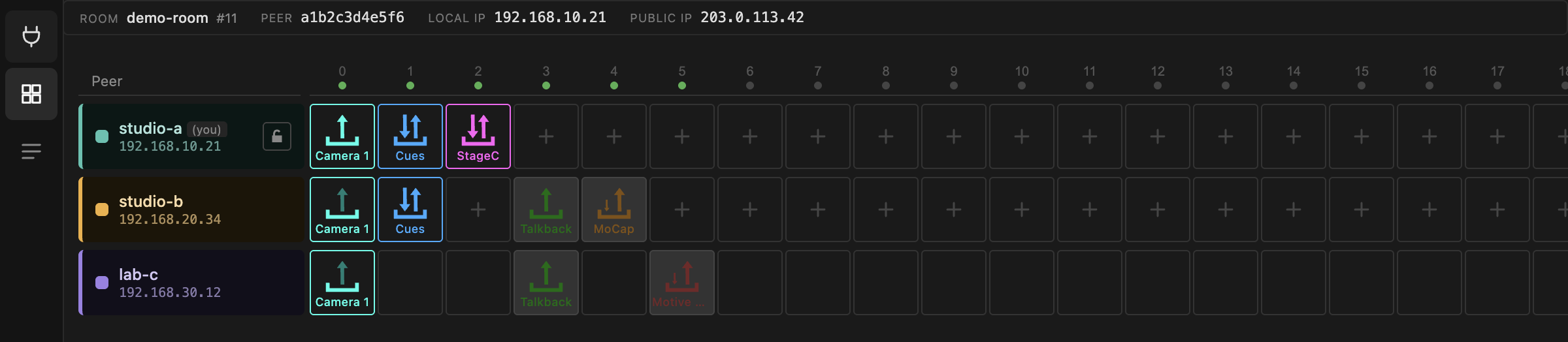
Devices in the same column can exchange data. That is the whole idea. A
channel is a shared lane through the router: whatever studio-a sends on
channel 0, everyone with a receiving device on channel 0 gets.
Channels do not carry types. Nothing stops you putting an OSC device on the same channel as someone else's UltraGrid device — they simply will not talk to each other, because they use different ports inside that channel's range. Keeping one kind of traffic per channel is a convention that keeps rooms readable, not a rule the app enforces.
The header

| ROOM | room name and number. The number decides the port range — see Ports. |
| PEER | your peer ID for this session. Regenerated every launch. |
| LOCAL IP | the address on the NetworkCard you picked. This is what local tools use to reach your devices. |
| PUBLIC IP | how the router sees you. |
Your row and everyone else's

Your own row is always first and tagged (you). Each peer gets a colour, which
you can change in the peer detail panel.
The 20 channels follow. Empty cells on rows you are allowed to edit show a +;
on a locked peer's row they stay blank, because there is nothing you can do
there.
Reading a cell
A cell shows the device type by colour, its description as a label, and an icon for which way data moves.
| Arrow | Meaning |
|---|---|
| Up | from your machine to the router |
| Down | from the router to your machine |
| Both | sending and receiving |
| Sideways / loop | between your machine and its own LAN, not through the router |
Brightness is the live part:
| Look | State |
|---|---|
| Grey cell, grey icon | device exists but is switched off |
| Dark cell, dim colour | switched on, no data moving |
| Dark cell, full colour | switched on, data moving right now |
So a room where everything is configured correctly but nothing is running looks dim; a room in use lights up. A device that is on but stays dim is the first thing to investigate.
Dim when you expect bright
Nearly always the firewall, on the receiving side. See the FAQ.
Scrolling and selecting
All 20 channels are always present; the grid scrolls sideways when the window is too narrow.
- Click a device cell to open its panel at the bottom.
- Click a peer's name block to open its detail panel.
- Click the empty area to clear the selection and close the panel row.
- Click a channel number in the header to inspect that channel's proxies.
An empty room

Right after joining you are alone with 20 empty channels. Remote peers appear as they join, with whatever devices they already had — device state is retained on the broker, so a peer that rejoins brings its rack back with it.