Adding & removing devices
Add a device
Click the + in an empty cell.
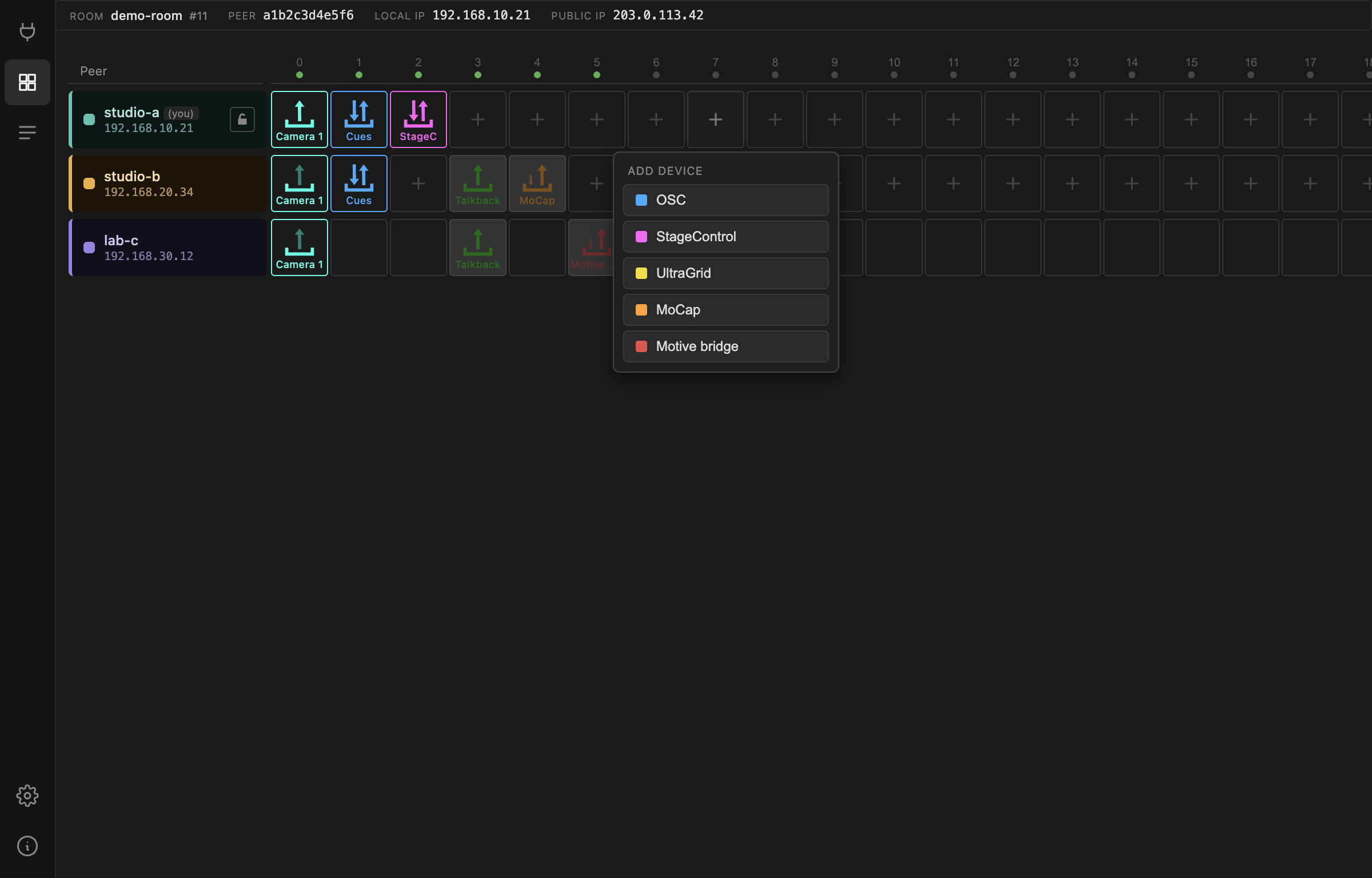
| Device | ||
|---|---|---|
| OSC | OSC messages between peers | |
| StageControl | browser-based OSC surface | |
| UltraGrid | video and audio | |
| MoCap | OptiTrack via NatNetFour2OSC | |
| Motive bridge | native NatNet, re-multicast |
A device type greyed out as not available on this peer means the target machine cannot run it — most often MoCap on a peer that is not on Windows. The choice is offered based on what that peer reports, not what your machine can do.
The new device arrives with sensible defaults, its ports already allocated, and switched off.
You can add devices to other peers
Adding a device to someone else's row publishes only the device type. Their machine fills in the rest — IP addresses, ports, defaults — because only it knows what its own hardware looks like. This is why a device you create remotely takes a moment to fill in.
Remove a device
Open the device's panel and press Remove Device, or right-click its cell. You will be asked to confirm; removal stops the device and clears all of its settings.
A running device cannot be removed — switch it off first. The Remove button stays disabled while it is on.
The panel row
Clicking a device cell opens its panel in a row docked at the bottom.
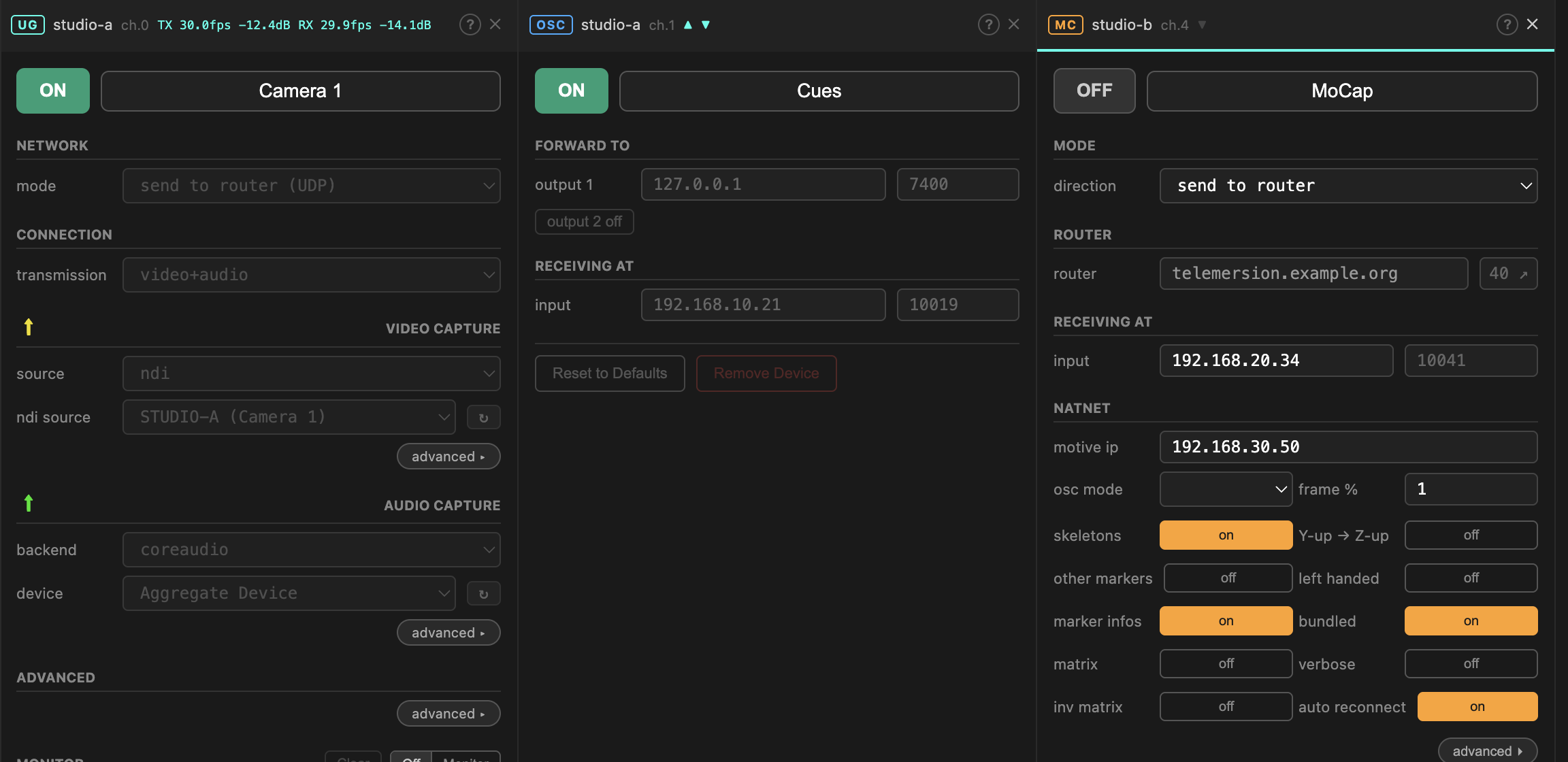
Each panel header shows the device type badge, which peer and channel it belongs to, and live activity — for UltraGrid, the TX/RX frame rate and volume.
- ? opens this page's documentation for that device type in your browser.
- Pin (the pin icon) keeps the panel open when you select another cell. Without pinning, selecting a different device replaces the panel.
- Close (×) removes a pinned panel.
- Drag a pinned panel's header to reorder.
- Drag the divider above the row to resize it. The height is remembered.
Pinning is how you compare peers: pin your sender and the other side's receiver next to each other and watch both indicators at once.
Switching a device on
Every panel has an ON/OFF button at the top left, and a free-text description next to it that defaults to the device type name.
While a device is on, its settings are locked. This is deliberate — changing a port under a running stream does nothing good. Switch off, change, switch on.
The description is yours to use: Camera 1, Talkback, Cues read far better
in the matrix than five cells all saying UG. The description is a label only;
the app dispatches on the device type, never on what you call it.
Editing other peers' devices
Any peer can configure any other peer's devices. A remote peer editing your channel and you editing it yourself take exactly the same path through the app — there is no difference between them internally.
That is powerful during a rehearsal, when one person can set up every location from one seat. When you would rather people kept their hands off, lock your row — see Peer details & locking.
Why interactions take a moment
Every change is published to the broker and only acted on when it comes back to you. On a public broker that round trip is 50–200 ms, so buttons respond with a slight delay. It also means that while the broker is unreachable you cannot toggle anything — though streams already running keep running, since the media itself never goes through the broker.